Card Time Tracker power-up helps you track how much time your team spends working on Trello cards. It lets you record work hours with a simple start/stop timer and keeps a clear log of all time entries. Total tracked time appears directly on cards, with detailed breakdowns and analytics to help you understand where your team's effort goes.
Getting started
To start tracking time on your board, complete three quick steps below. If you're an experienced power-up user, you can skip reading this section.
Enable power-up
First, enable Card Time Tracker on your Trello board. Click Power-Ups (the rocket icon) in the board header, then Add Power-Ups. Search for "Card Time Tracker" and click Add. See Enabling power-ups if you run into trouble.
Authorize power-up
Next, authorize the power-up to access your board data. Click the Card Time Tracker button in the board header (the stopwatch icon). Once the Trello authorization window appears, review the permissions and click Allow.
Start subscription
This power-up requires a paid subscription to access full functionality. Click the Card Time Tracker button in your board header (the stopwatch icon), and click Subscribe. You'll be redirected to Stripe to process payment safely, then back to your board. See Managing subscriptions to learn more.
Tracking card time
Once the power-up is active, you can start tracking time on any card:
- Open a card and click Start tracking in the Card Time Tracker section. The timer starts immediately.
- You can close the card or even Trello itself - the timer keeps running in the background. Come back when you're done with the work.
- While tracking is active, the front of the card shows a green badge with a play icon so you can always tell which card is being tracked at a glance.
- When you're ready to stop, open the card and click Stop tracking. You can optionally add a description of the work you just completed (you can also do it later).
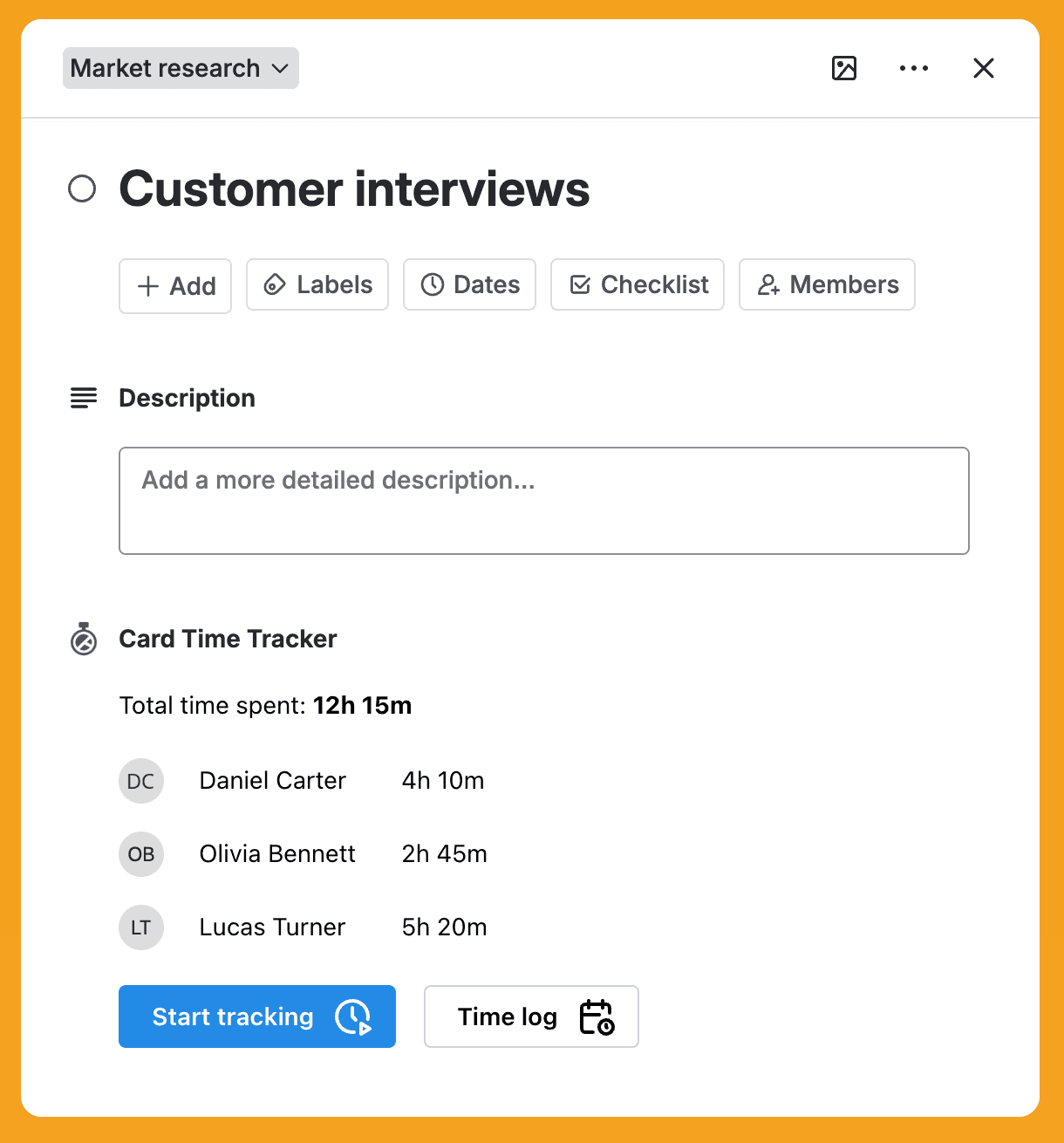
- You'll also see a per-member time breakdown right there, showing how much each member has tracked, alongside the total time spent by the whole team.
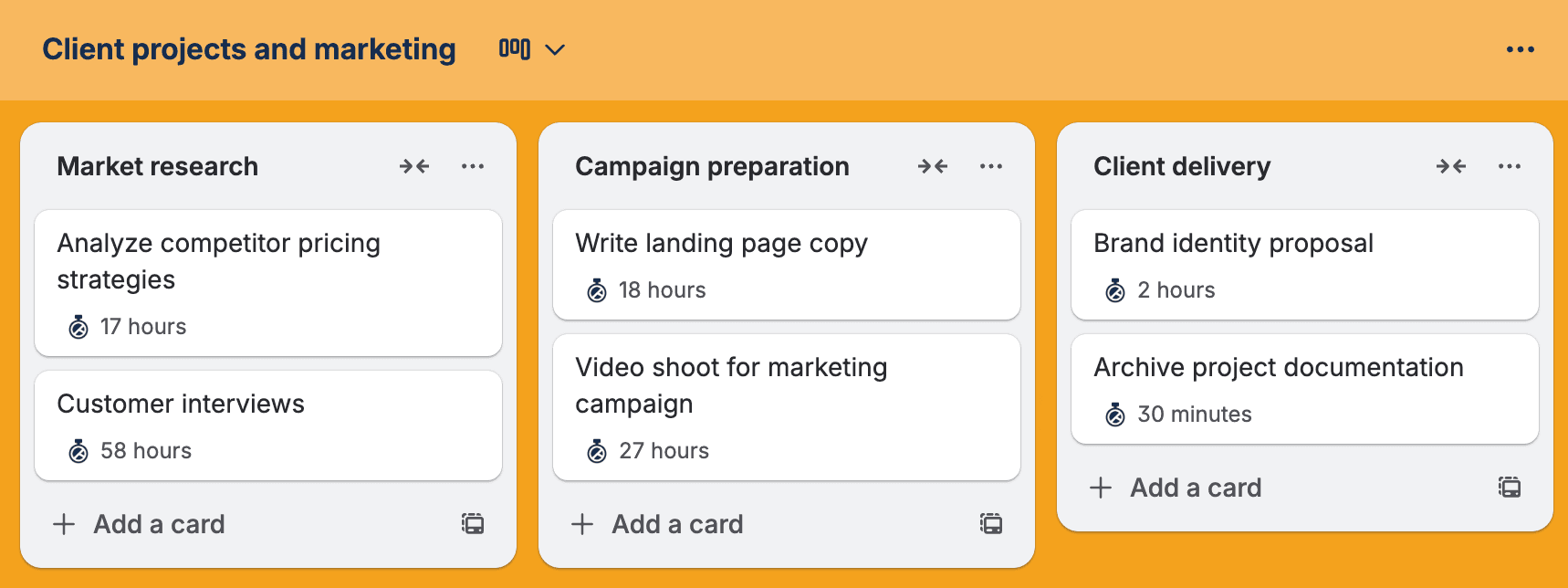
The card front also shows a badge reflecting the total time spent.
Viewing time log
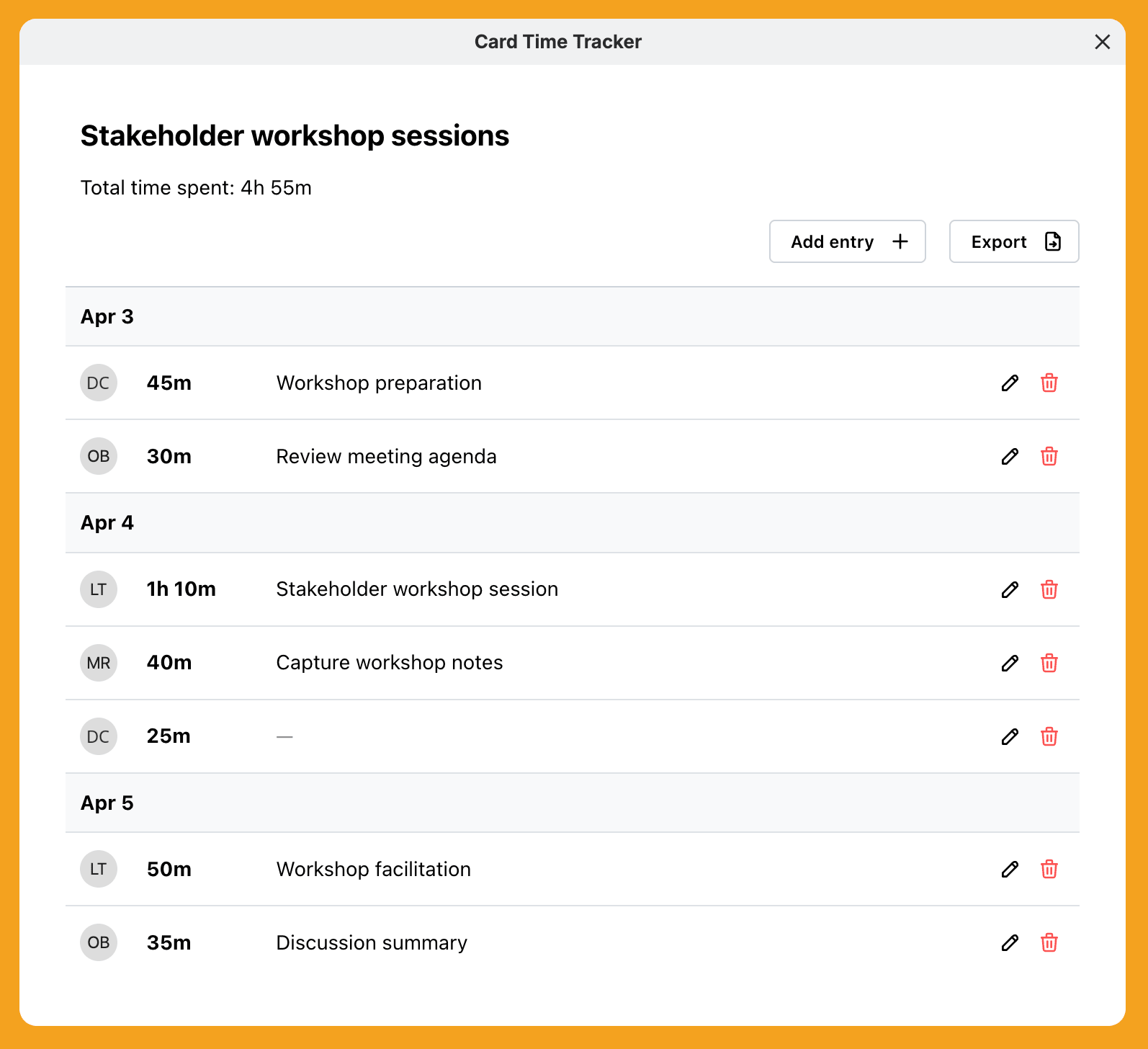
To see a full breakdown of time entries on a card, open the card and click Time log. This opens a modal with all tracked entries organized by day. For each entry you'll see the member who tracked the time, the duration, and an optional work description.
Editing time log
Inside the Time log modal, each entry has Edit and Delete buttons. Use these to correct mistakes or to add work descriptions you skipped earlier. You can edit and delete only your own entries.
If you need to backfill a time entry, you can use the Add entry button to add entry to any day in the past.
Exporting time log
Inside the Time log modal, click Export to download an Excel file containing all the time entries currently shown in the modal. The exported file matches exactly what you see on screen.
Viewing card time analytics
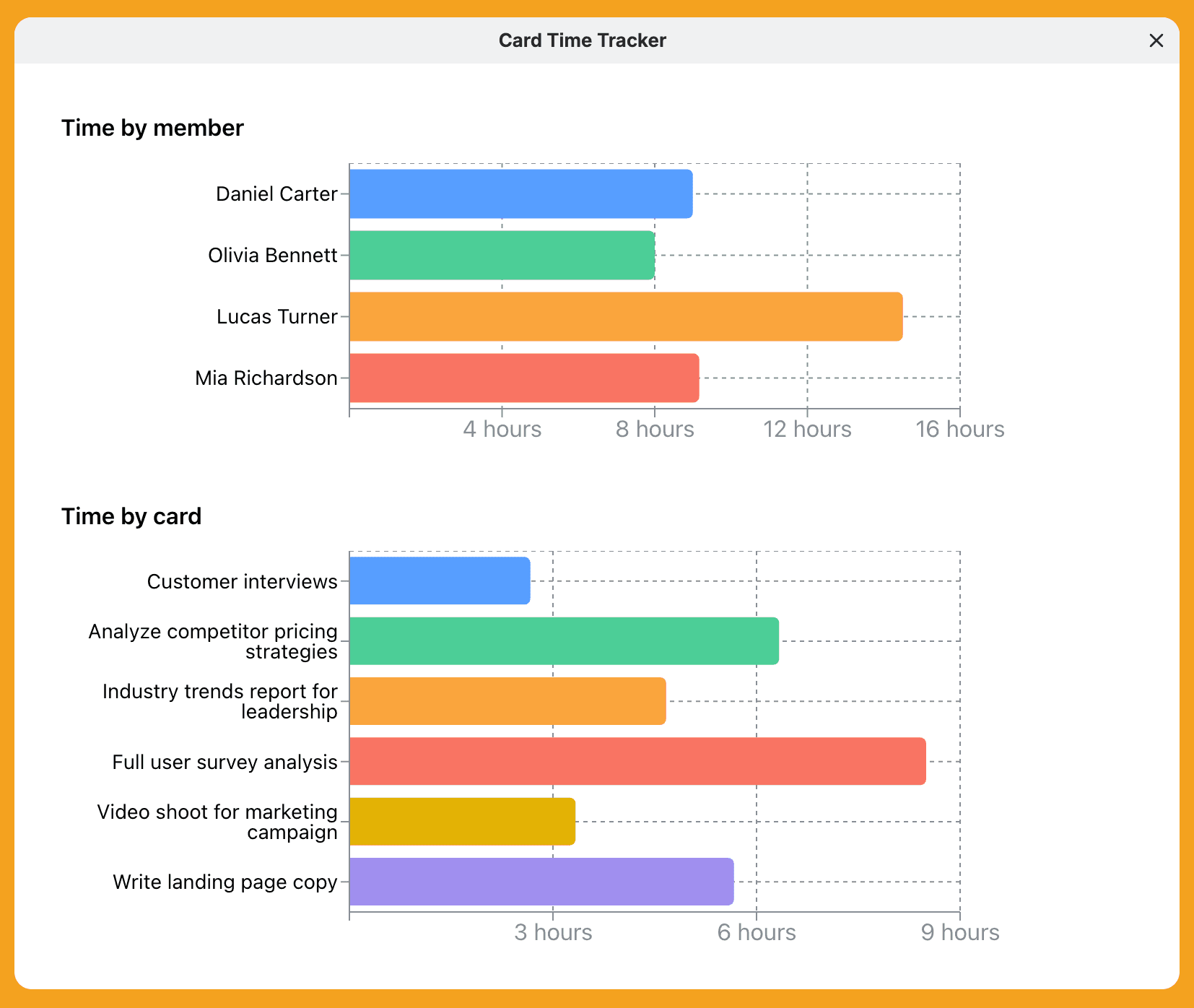
Click the Card Time Tracker button (the stopwatch icon) in the board header to open the analytics modal. From there you can explore two views:
- Time by member - see total tracked time grouped by team member to understand who is overloaded and who has available capacity.
- Time by card - identify tasks that consume the most effort and spot potential bottlenecks.